


What you can do with the Instagram MCP
Talk to it in plain language — the agent gets the media, the account that posted it and the people who engage with it
-
Instagram profile
Bio, number of followers and posts, verified and business status.
-
Account search
Look up an account by name even if you don’t remember the exact username.
-
Posts and reels
Latest posts and reels of an account, including captions and media.
-
Post by URL
Any single post, reel or carousel — all slides, the caption and the author.
-
Comments
Comments under a post or reel, with their authors and dates.
-
Likers
Who liked a post or reel, with names and profile pictures.
-
Followers
The list of an account’s followers, one page at a time.
-
Following
The accounts it follows, one page at a time.
-
Stories live now
All stories an account has posted right now, before they disappear.
-
Story by URL
One story with its media, author and expiry time.
-
Highlights
Pinned collections with all the stories saved in them.
-
Video download
Direct video links for any post, reel or IGTV — without watermarks.
Full Instagram access through a single MCP
Use the same tools in a chat app, a code editor or your own scripts — reels, photos, videos, carousels, stories and highlights.
Download Instagram videos and reels
Public contentA single block in the client config is all it takes to connect — then just ask for media in your own words.
{
  "mcpServers": {
    "gramsnap-mcp": {
      "type": "http",
      "url": "https://api-wh.gramsnap.com/instagram/mcp"
    }
  }
}Download this reel instagram.com/reel/… and tell me what its caption says
download_instagram_video(
Here is the reel in 1080×1920. Its caption says «morning run».
Should I also save the cover image or fetch the account’s other recent posts?
Connect the Instagram MCP to your AI tool
Choose your platform and go through the steps below
Fits any MCP-compatible client · the only difference is where the config file lives.
-
Go to the MCP settings of your client and locate the config file — most often it is
mcp.json. -
Put GramSnap into the
mcpServerssection:{ "mcpServers": { "gramsnap-mcp": { "type": "http", "url": "https://api-wh.gramsnap.com/instagram/mcp" } } } - Save the changes and restart the client to load the server.
-
Now try a request in the chat:
- Download the video from instagram.com/p/…
- Grab all current stories of this account
Any ChatGPT account will do · Developer mode has to be enabled in the settings.
- Open chatgpt.com and log in.
-
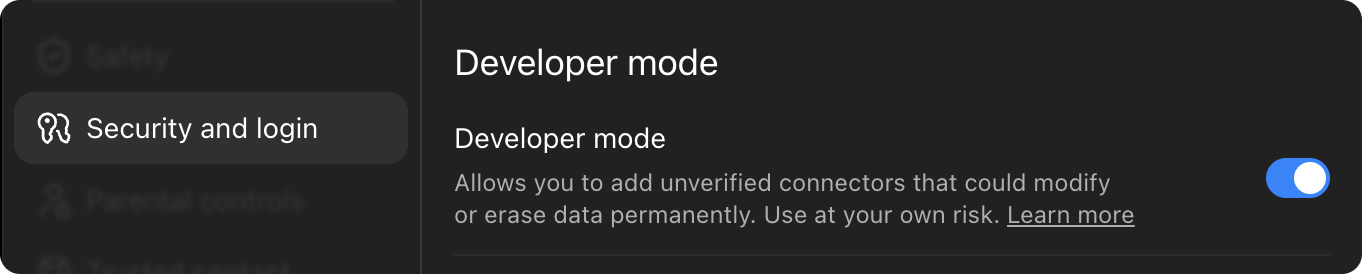
Go to Settings → Security and login and turn on Developer mode.
- Leave the settings and go to the plugins page: chatgpt.com/plugins
-
Hit the + in the top right corner and select Create plugin. In the window that opens, click Create MCP application.

-
Enter this address in the URL field:
https://api-wh.gramsnap.com/instagram/mcp - Set the authentication method to OAuth and click Connect (or Sign in).
- In the sign-in window, log in or sign up, then grant access.
- That is it. In any chat, open the tools menu and enable GramSnap.


Simply describe what you need — the assistant picks the tool on its own whenever a request calls for it.
Requires a paid Claude subscription · Pro, Max, Team or Enterprise.
- Open claude.ai and log in.
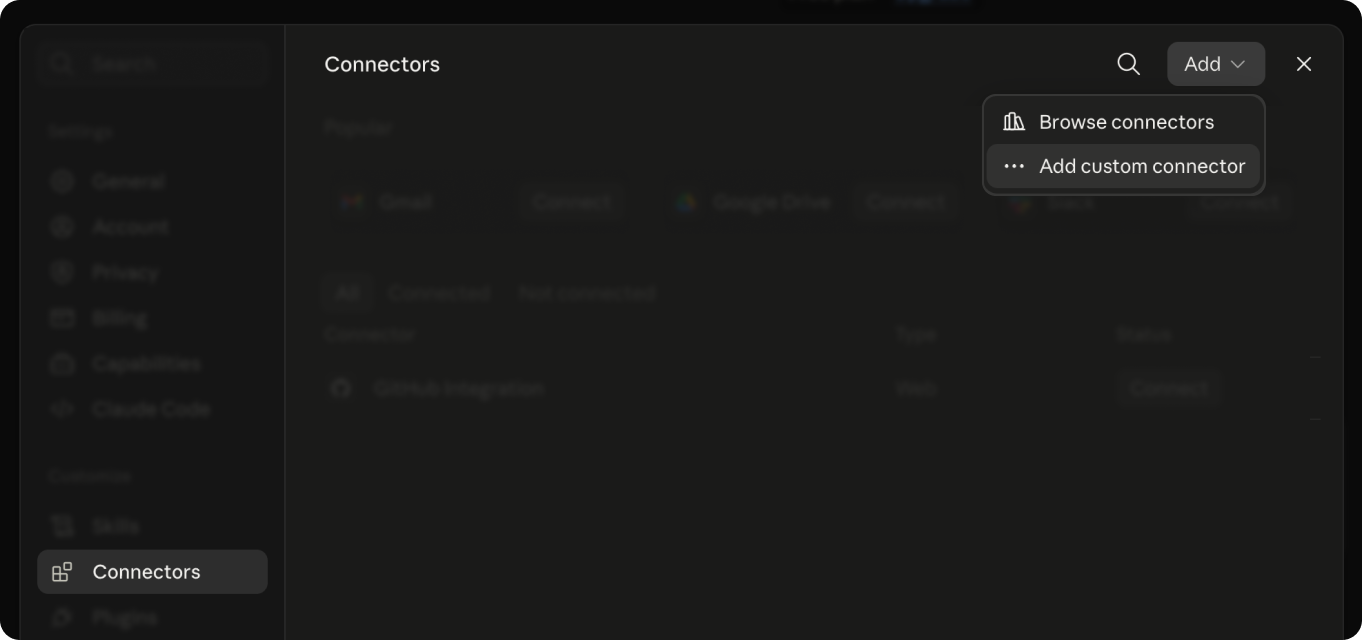
- Click your name in the lower left corner, then Settings → Connectors.
-
Choose Add custom connector.
-
Insert the address and click Add:
https://api-wh.gramsnap.com/instagram/mcp - Click Connect and, in the sign-in window, log in or sign up and grant access.
- Return to the chat, open the tools icon below the input field and enable GramSnap.

Don't see the connector? Refresh the page and make sure it is enabled in the chat tools list.
Requires a paid Claude subscription · desktop app for Windows or macOS.
- Install the Claude app, launch it and log in.
- Open Settings → Connectors.
-
Choose Add custom connector.
-
Insert the address and click Connect:
https://api-wh.gramsnap.com/instagram/mcp - Your browser opens a sign-in page — log in or sign up, then grant access.
- Go back to the app: GramSnap is now in the tools list.
Update the app regularly — custom connectors need a recent version.
Terminal · with Claude Code installed.
- Install Claude Code and log in — the first launch walks you through it.
-
Add the server with this terminal command:
claude mcp add --transport http gramsnap-mcp https://api-wh.gramsnap.com/instagram/mcp -
Launch Claude Code and enter
/mcp. - Select gramsnap-mcp and click Authenticate to open the sign-in page in your browser.
- Log in or sign up, grant access and return to the terminal.
- All set — tell the assistant what you need.
gramsnap-mcp in the command is just the name in your local server list — feel free to rename it.
Having trouble?
- The sign-in window doesn’t appear or authorisation fails. Enable pop-ups in your browser and connect again.
- The tool is gone or no longer responds. Delete the connector and add it back with the same address.
- The Connectors section is missing. Make sure your plan supports it and that you use the latest version of the app or page.
- The session has expired. Just log in again — click Authenticate or Connect one more time.
All features included in every plan
Try it with 50 free requests — no credit card needed. Start for free-
Pro
$50.00 /mo
Includes:
- 50,000 requests per month
- Fixed limit — no unexpected extra charges
- Proxies included
- MCP access
-
Best value
Ultra
$150.00 /mo
Includes:
- 250,000 requests per month
- Fixed limit — no unexpected extra charges
- Proxies included
- MCP access
-
Mega
$250.00 /mo
Includes:
- 1,000,000 requests per month
- Fixed limit — no unexpected extra charges
- Proxies included
- MCP access
To pay, ask for a payment link right in the chat where GramSnap is connected — ChatGPT, Claude or any other client — and the assistant will send it to you.
Need higher limits? Get in touch for a custom plan.
Frequently asked questions
Answers about connecting GramSnap to your AI agent.
-
MCP (Model Context Protocol) is an open standard that lets AI assistants use external tools and data. The server offers a set of tools, and the assistant chooses when to use them.
-
Every MCP-compatible client. The setup section above explains ChatGPT and Claude — web, desktop app and Claude Code — and gives a universal config for all the others.
-
No. Just like on our website, only public content is available.
-
The data is the same, the user is different. The REST API is meant for your own code, while MCP is built for an AI agent that decides by itself when to download something.
Ready to get started?
Hand the downloading over to your AI agent — connect the MCP in a few minutes and keep working in the tool you already use.
- Original quality without watermarks
- Photos, videos, reels and stories
- Zero maintenance on your end